
Automated MFA Opt-Out Guide
Guide to using the Automated MFA Opt-Out solution to disable MFA for a credential.
Overview
Many utility providers require Multi-Factor Authentication (MFA) as a security measure. While effective for individual users, MFA interrupts automated data synchronization by requiring manual intervention to refresh credentials.
The Automated MFA Opt-Out feature allows you to securely authorize Arcadia to disable MFA for specific utility credentials. By opting out the credential from MFA, you ensure that energy data flows into your application without the friction of repetitive manual logins.
Key Benefits
- Uninterrupted Data Flow: Maintain a continuous stream of energy data without "Refresh Required" interruptions.
- Reduced End-User Friction: Eliminate the need for you to repeatedly provide MFA tokens for data access.
- Enhanced Security Controls: Granularly manage which credentials have MFA disabled through a secure, consent-based workflow.
- Automated Maintenance: Reduce the operational overhead of managing credential health for your entire portfolio.
How it works?
For utilities where Arcadia supports the automated mfa opt out, the system provides a specialized consent workflow. Once the user completes a one-time MFA verification and grants consent, Arcadia interacts with the utility portal to disable the MFA requirement for that specific credential, moving the credential into a healthy, long-term syncing state.
Disabling MFA via the Plug Dashboard
Follow these steps to identify credentials that require attention and enable the automated opt-out.
- Identify Credentials Requiring Action
- Log in to your Plug Dashboard and select Manage your credentials.
- Filter the list by the saved filter: 'MFA refresh required'.
- Select an impacted credential. If the provider is supported, a notification will appear above the Retry MFA verification button.
- Verify & Consent
- Click Retry MFA verification.
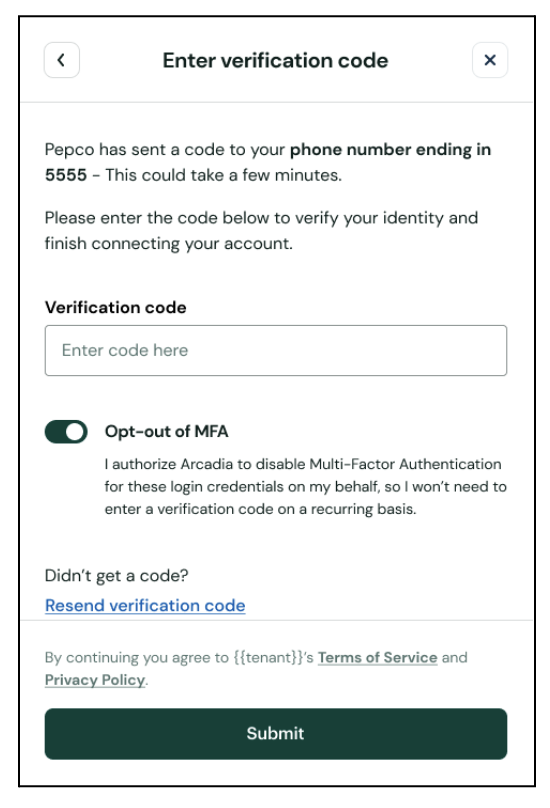
- Choose your preferred method (Text, Email, etc.) to receive your MFA token & Input the code you receive.
- Grant Consent: Toggle the Consent Switch to authorize Arcadia to opt you out of MFA for this specific utility provider.
Requesting MFA Opt-Out from your End-Users
For credentials owned by a different end-user (where you do not personally own the utility login), use the Connect Link method to allow the end-user to securely authorize the MFA opt-out.
-
Identify Credentials Needing Attention
- Log in to your Plug Dashboard and select Manage your credentials.
- Filter the list by status detail:
MULTI_FACTOR_AUTHENTICATION_REFRESH_REQUIRED. - Select an impacted credential to view the details page.
-
Generate and share the update Link
- As credential is owned by an end-user, they must perform the authentication themselves.
- In the credential details view, locate and click Generate update link.
- A temporary Connect link will be generated that is valid for 72 hours.
- Copy and send this link to your end-user via your preferred communication channel (email, SMS, etc.).
-
End-User Verification & Consent
Once the end-user opens the link, they will complete the following steps:
- Authenticate: They will select their preferred MFA method (Text, Email, etc.) and input the token received from the utility.
- Grant Consent: They must toggle the Consent Switch to authorize Arcadia to opt them out of MFA for that specific provider.
Updated 7 months ago