
Discovered and Expected Accounts
Overview
Discovered and expected accounts are two features designed to go hand in hand. Discovered accounts allows your organization to handpick which accounts are activated, rather than activating all accounts by default. Expected accounts allows your organization to provide Arcadia with a list of account + provider combinations you expect us to find from your supplied credentials, such that when we do come across the account, we can activate it on your behalf without any additional input required from you.
Expected accounts builds on top of discovered accounts, reducing onboarding hassle and friction.
Discovered Accounts
Discovered accounts enable you to manage your account activation on a case by case basis. Previously, all accounts were activated by default. This meant you would need to deactivate accounts that were not required for your use case. If you opt into the discovered accounts feature, going forward, all accounts will begin in a discovered state and must be activated by you, the customer, before Arcadia fetches and makes data available.
How it works
When auto-activation is disabled for your organization, any accounts found behind a credential will initially enter a "discovered" state instead of being automatically activated. This gives you the opportunity to review and select which accounts you wish to activate.
When you submit a credential, all associated accounts (normal, summary, and sub-accounts) are discovered through a Top-of-Stack (TOS) data pull and assigned status: NEW_ACCOUNT and statusDetail=STATEMENT_EXTRACTION_NOT_REQUESTED
We will then expose high level data only that you can use to determine if you would like to activate the account. This includes data such as account number, billing address, and meter numbers, but excludes detailed information such as usages and charges. If the account data is desired, you can activate the account as needed.
Next expected post (NEP) will be null for any discovered account given we do not have enough information to confidently predict the next NEP date. Additionally, some detailed endpoints may be blocked until the account is activated (ex. Retrieve Detailed Account).
Note that for a summary account with 1 more more sub-accounts, activation (or deactivation) of either the summary account or one of the sub-accounts would imply activation of the summary accounts & all sub-accounts.
Accounts not associated to a credential with web navigation
For any account discovered from the bill uploader, email (beta), or third party portals (TPP), the account will be auto activated regardless of your organization configuration. This is because these accounts are specifically provided by you, the customer, to Arcadia and are not "discovered" via web navigation.
If you no longer expect to upload bills manually for a given account, deactivate the account. However, if you upload a bill for the same account, it will be activated by default again.
Tradeoff: Speed for choice
For customers who opt into this feature, you will gain control over which accounts data is initially fetched for and subsequently you are billed for. However, this also means that there will be a delay in data delivery as we will not begin the process to obtain the statement data until you activate a given account. For more details on this, reach out to your Account Manager or Customer Success Manager.
How to opt in
If you are interested in this feature, reach out to your Account Manager, Customer Success Manager, or Zendesk with the ask and we will update your organization settings!
Webhooks
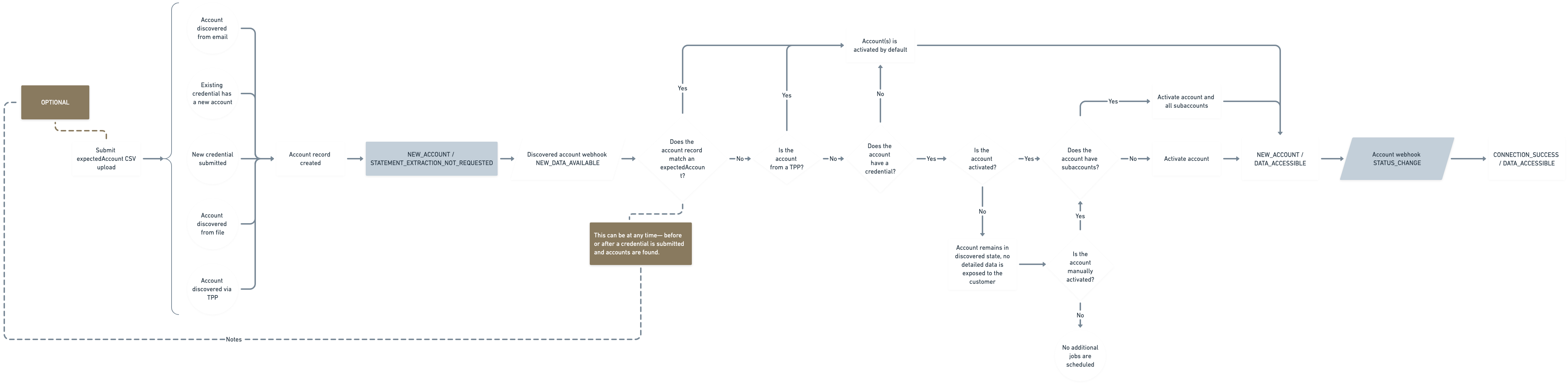
State machine for discovered and expected accounts
Discovered accounts feature enabled
For organizations with the discovered accounts feature enabled, NEW_DATA_AVAILABLEwebhooks will be triggered upon account record creation, and STATUS_CHANGEwebhooks will be triggered when an account is manually activated or an expected account is matched to an account record.
With these new features, you can now choose to disable auto-activation and instead manage accounts through a "discovered" state or by providing a list of "expected" accounts. This empowers you to activate only the accounts essential for your business operations, avoiding unnecessary costs and data.
Discovered accounts feature disabled
For organizations with the discovered accounts feature disabled, there will be no change to existing behavior.
Expected accounts
Expected accounts allows you to proactively provide us with list of accounts you intend to activate. This streamlines the onboarding process and ensures that only desired accounts are activated with minimal customer involvement.
How it works
From the Dashboard, navigate to the Accounts page, select the "Management" tab. From here, select the button "Upload expected accounts" in the top right hand corner and download the template. Fill in the template based on your data and upload the file containing your expected accounts.
Expected accounts utilize the normalizedAccountNumber concept. This strips out any leading zeroes and other non-alphanumeric numbers. This means that account number 1234 and 12-34 would resolve to the same record.
After uploading your expected accounts, you can view, search, and filter your list of expected accounts. You can also delete expected account records through the UI, though editing is not supported at this time. You can include custom data for your expected accounts in the upload file, which will be passed to the account record once matched and activated.
Once an expected account is discovered and subsequently auto activated, it will be removed from the expected account table view. The account record will reflect in its event history that it was auto-activated after discovery.
You can also use the Create Expected Accounts endpoint to handle this in an automated fashion.
Uploading expected accounts after a credential is submitted
If an expected account record is created before the account is discovered, it will be automatically activated once found.
If an expected account record is created after an account is discovered, the discovered account will be activated once the expected account is submitted and matched. Typically we recommend uploading your expected accounts first to receive data more quickly, however, the accounts will be activated all the same regardless of order if a match is found.
Pre-existing accounts and post-account discovery expected accountsIf an account record existed, but was not activated prior to the release of expected accounts, the account will NOT change status nor status detail when the expected account is matched to the existing account record. This also means a webhook will not be triggered.
This only impacts records created before the feature release on November 19, 2025 that were not activated.
Filling out the template
- In the template expectedAccounts.csv, add the accountNumber and provider information for the expected account you want to create. Optionally, you may include any relevant custom data. Note you cannot edit expected accounts once created, so be sure to include this information if it is relevant or delete and resubmit if needed.
- Follow the same steps for every expected account record you would like to create and submit the the file.
- If any warnings or errors are found, address them as needed and re-upload the file or ignore the warnings altogether. All expected accounts will be created and viewable in the
Accounts-->Managementtab of the Dashboard.
File requirements
- Supported file format: CSV only
- Maximum file size: 1 GB
- Maximum number of rows: 10,000
Template details: expectedAccounts.csv
All field lengths have maximums of 255 characters excluding providerId. providerId has a value of 40 characters: prv_00000000-0000-0000-0000-000000000000.
| Field | Type | Required | Note |
|---|---|---|---|
expectedAccountNumber | string | TRUE | Must not be in scientific notation. |
providerId | string | TRUE* | To create an expected account, ONE of providerId or providerName is required. |
providerName | string | TRUE* | To create an expected account, ONE of providerId or providerName is required. |
{customData} | string | FALSE | Dynamic columns for each account custom data label configured for your organization. |
businessUnitIds | string | FALSE | Comma-separated business unit IDs to assign to the expected account. Only 1 business unit is allowed per account unless the governance feature is disabled (Arcadia managed toggle). |
Warnings
Warnings may be ignored. They are flagged as irregularities from Arcadia's perspective.
| Name | Classification | Remedy |
|---|---|---|
EXPECTED_ACCOUNT_ALREADY_EXISTS | Account | This expected account record already exists. Remove the record from the sheet or ignore the warning. |
DUPLICATE_EXPECTED_ACCOUNT_IN_FILE | Account | This record already exists in the current file. Remove the duplicate or ignore the warning. |
UNUSED_COLUMNS | Global | N/A-- confirm data is not missing or column name is as expected |
ACCOUNT_ALREADY_ACTIVATED | Account | Expected account already created and the account is already activated. No action required. |
Errors
| Name | Classification | Remedy |
|---|---|---|
FILE_SIZE_TOO_LARGE | Global | File is too large. The maximum file size is 1GB. |
INVALID_CSV | Global | Use the template provided to ensure file is a CSV |
INVALID_ENCODING | Global | File has an invalid file encoding. We only support UTF-8 encoded files. |
TOO_MANY_ROWS | Global | Too many expected accounts in file. Reduce number of records to 10,000 |
MISSING_REQUIRED_COLUMN | Global | Review CSV file and ensure one of the required fields is present. Frontend global error. |
NO_DATA_IN_FILE | Global | No expected accounts in file. Add at least 1 expected account to the CSV file |
ERROR_OTHER | Global | Open a support ticket on Zendesk to look into the unexpected error |
DUPLICATE_COLUMN | Global | Remove duplicate column header. |
MISSING_BUSINESS_UNIT_PERMISSION | Global | The file includes businessUnitIds, but you lack permissions to assign accounts to business units. Reach out to your admin for help. |
PROVIDER_DOES_NOT_EXIST | Account | No provider with this ID or name was found. Please check and try again. |
PROVIDER_NOT_SUPPORTED | Account | Provider is not currently supported. Open a support ticket on Zendesk to look into this provider further. |
INEXACT_MATCH_PROVIDER_NAME | Account | The provider name supplied is not an exact match in our system. Review the suggestions provided in the updated CSV file or check out our full list available via List Providers or the Provider Coverage page. |
MISSING_REQUIRED_FIELD | Account | Review the required fields in the template details above. |
INVALID_VALUE | Account | Review the field types and valid values in the template details above (including business unit IDs). |
INVALID_FORMAT | Account | Expected account number is in scientific notation. Update format of column in CSV. |
BUSINESS_UNIT_DOES_NOT_EXIST | Account | Business Unit ID does not match any existing Business Units. Review the id and try again. |
MULTIPLE_BUSINESS_UNITS_NOT_ALLOWED | Account | An account can only be assigned to one Business Unit. Choose one and resubmit. |
BUSINESS_UNIT_ANCESTOR_CONFLICT | Account | An account cannot be assigned to a parent and child business unit simultaneously. |
BUSINESS_UNIT_OUT_OF_SCOPE | Account | You lack permissions to assign one or more of the specified Business Unit IDs. |
Updated about 1 month ago